Legacy
Digital estate planning checklist (printable)
A digital estate plan is a list of your devices, accounts, documents and money, with a note for each of who should get access and how. Print the checklist below, work through it over a weekend, and keep it with your will, or use the interactive digital legacy checklist to tick things off on screen.
You don’t need special software. The hard part isn’t the tools; it’s knowing what you have and writing it down. Most families get stuck not because something is locked, but because nobody knew it existed.
This is general information, not legal advice. A will is a legal document with rules that differ by state and country. Ask a lawyer, such as James Miller in our examples, how to refer to digital accounts and passwords in yours.
How to use this list
Each section has items to check, and a column in your head for 3 questions:
- Does it exist? Write it down.
- Who should get it? One person, several, or nobody.
- How will they get in? A passcode, a built-in tool, a password manager, a document, or a lawyer.
Never write passwords on this checklist itself. It says where things are, not what they are. Passwords and phrases go in the places named below.
1. Devices
- iPhone, iPad and Mac: where each is and how to unlock it (passcode in a sealed envelope with your papers)
- Other computers, tablets and old phones in drawers
- External drives and USB sticks, and whether they’re encrypted
- Home Wi-Fi and router login
- Smart home and security system accounts
Apple can’t unlock your iPhone for your family without its passcode. See how to give your family access to your iPhone.
2. Core accounts
- Main email account (the key to resetting almost everything else)
- Apple Account, with a Legacy Contact added: Settings → your name → Sign-In & Security → Legacy Contact
- Google account, if you use one: Google’s Inactive Account Manager
- Phone carrier account (two-factor codes often go to your number)
- Password manager, with emergency access or an Emergency Kit stored with your papers
3. Passwords and sign-in
- Which password manager you use, and who can get in. Compare options in password manager emergency access
- Accounts that use an authenticator app or a security key, and where backup codes are
- Passkeys: these live in iCloud Keychain or your password manager, which Apple’s Legacy Contact doesn’t include
4. Money
- Bank accounts (bank and the last 4 digits of each account, never full numbers on this list)
- Investment and retirement accounts
- Pensions
- Loans, mortgages and credit cards
- Payment apps such as PayPal or Venmo, and any balances
- Crypto: which wallets and exchanges, and where recovery details are kept. See passing on crypto wallet recovery
5. Documents
- Will and any trust documents (where the original is)
- Power of attorney and healthcare directive
- Life, home and car insurance policies
- Property deeds and vehicle titles
- Birth and marriage certificates, passports
- Recent tax returns
Originals go in one known physical place; scans in one encrypted place. Where to keep important documents compares the options.
6. Photos, files and memories
- iCloud Photos or Google Photos, and whether family already has a shared library
- Files in iCloud Drive, Dropbox or OneDrive
- Private photos and notes in a vault app, and whether anyone should get them. See what happens to your photos when you die
- Social media accounts, and whether each should be memorialized or closed
7. Subscriptions and recurring payments
- Streaming, software and cloud storage subscriptions
- Domain names and websites
- Memberships and donations
8. Wishes and people
- Your lawyer and executor, with phone numbers
- Your accountant or financial adviser
- Funeral wishes
- Letters to family
- Who to tell first, and who should not be the one to deal with certain things
Where Bunker fits, and where it doesn’t
Most of this list needs no app. A sealed envelope, Apple’s Legacy Contact and a password manager with emergency access cover a lot.
A Legacy Vault helps with one specific job: keeping the private, sensitive parts of the list (scans of the will and deeds, the account list, the crypto recovery details, the letters) encrypted on your iPhone, iPad or Mac, and letting the right people open them together later. With Bunker Pro, you choose up to 5 trusted contacts and how many must come together, for example any 2 of 3, and each gets a printed Legacy Card. A card alone opens nothing, unless you chose a set of just 1.
Inside a Legacy Vault, Bunker shows a “What to include” card that suggests these same kinds of items: will and trust documents, insurance policies, an account list, deeds, pension details, where passwords are kept, crypto wallet recovery details, funeral wishes, letters and photos. You can scan most of them from the card with the Document Scanner in one tap. A few rows tick off on their own when the vault already has a match: a scan tagged Insurance, any photo, and the letter.
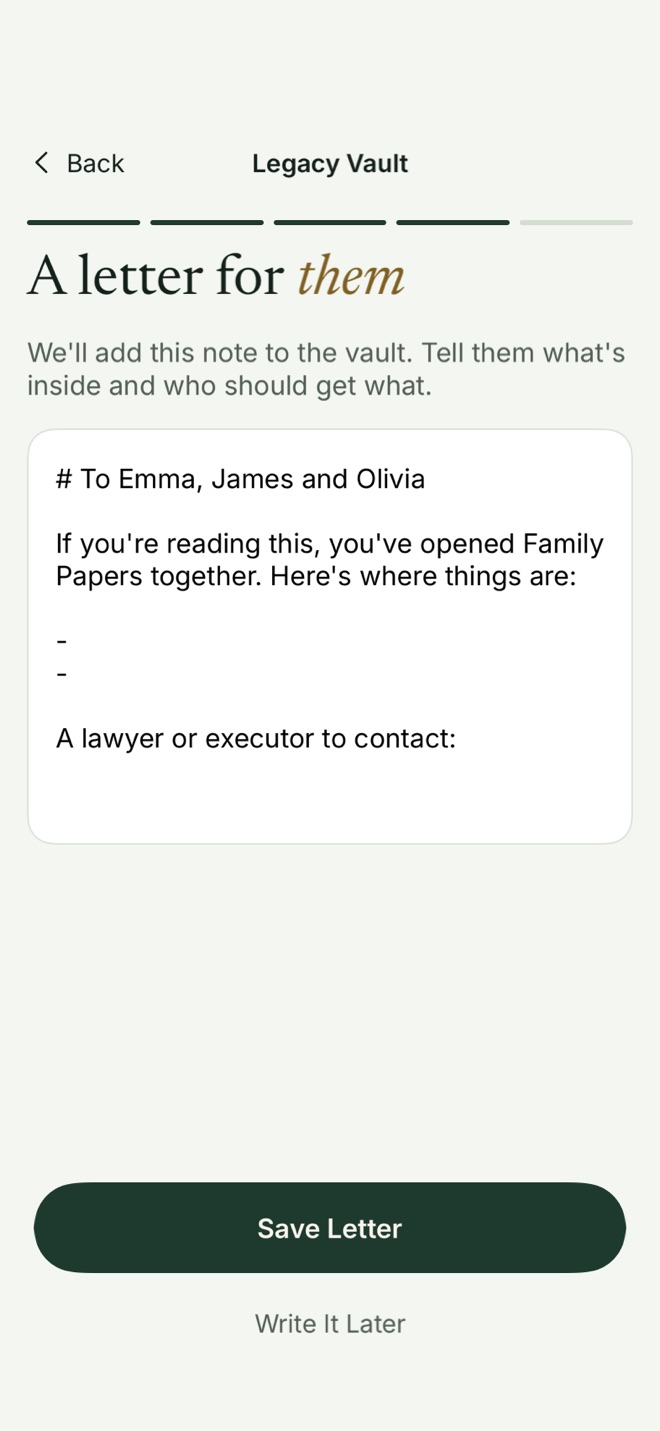
The limit: Bunker can’t know whether you have died. In this version, enough trusted contacts acting together can open a Legacy Vault at any time, including while you’re alive. Bunker usually lets your devices know afterwards, but that’s best-effort. A waiting period is planned, not built. Choose people you’d trust with the vault today.
An example
Sarah works through this list on a Sunday. She prints it, writes “envelope with James” next to her passcodes, adds her daughter Emma Clarke as her Apple Legacy Contact, and sets up emergency access in her password manager. She scans her will, insurance policies and deeds into a Bunker vault called “Family Papers”, writes a letter inside it, and makes it a Legacy Vault that any 2 of Emma, Olivia Bennett and her lawyer James Miller can open. The original will stays with James.
Review it once a year
Pick a date, such as your birthday, and check: are the people still right, have any passwords or phones changed, and is anything new? Bunker sends a yearly reminder for a Legacy Vault, which is a good moment to look at the rest of the list too.